I decided to make this tutorial because I couldn't find any good info when I decided I wanted to upgrade the 1500 Celeron M processor in my Amilo Pro V2030 to a Pentium M of a higher speed, the Processor I decided upon was a 1700 Pentium M with a 2MB level 2 cache. The processor I chose was the SL7EP - it's a 1700MHz Pentium M processor with a 2meg level 2 cache, I sourced this used processor from Ebay as these processors are no longer in production. I will try and make this tutorial as easy as possible as I know not everybody has experience in opening a pc/laptop, I'm not the greatest writer in the world so if I miss anything out or it's difficult to understand please let me know and I will write/rewrite what is needed.
To select a processor fit for the V2030 I first needed to take note of the socket type which is socket 479 FC-µPGA, this information tells me the processor to be installed is of the Dothan family and is interchangable as opposed to the FC-µBGA which have to be soldered to the processor. I then had to take note of the FSB (Front Side Bus) of the laptop which is 400MT/s (it's actually 100MT/s x 4 = 400MT/s, the 100 comes into play when selecting the multiplier). The FSB is very important here, the V2030's FSB is locked at 400 and there's no changing that. If I installed a processor designed for an FSB of 533 in the hope it would run faster it would have the opposite effect as the multipliers on these 533FSB processors are lower than those designed for 400FSB. For example the SL7EP is a 400FSB (4x100) processor with a multiplier of 17 - meaning 100(FSB) x 17(multiplier) = 1700MHz, whereas the SL7S8 is a 533FSB (4x133) processor with a multiplier of 13 - meaning 133(FSB) x 13(multiplier) = 1729MHz but because the V2030 only has an FSB of 400 it means the CPU will only run at 1300MHz (100 x 13 = 1300).
If all this processor information is too much to take in I have compiled a list of compatible processors here, choose one of the following and you wont go wrong;
SL7EP - 1700MHz
SL7BA - 1700MHz
SL7EN - 1800MHz
SL8U6 - 1800MHz
SL8QZ - 1800MHz
SL7EM - 2000MHz
SL7V3 - 2100MHz
There are slower processors available but I wouldn't waste your time or money on them as you wont see much of a noticable increase with them. Just type these processor codes into ebay and see which fits your budget.
Annotations and suggestions to this thread can be offered via PM to > v2030 < or > hikaru <.
The German equivalence to this Sticky can be found -> here. Die deutsche Version zu diesem "Sticky"-Thread findet ihr -> hier.
amilo-forum.com
Everything you need to know about Amilo and Lifebook laptops by Fujitsu
V2030 Processor Upgrade Tutorial 
V2030 Processor Upgrade Tutorial
 by v2030 » Mon May 05, 2008 9:32 am
Last edited by v2030 on Tue Oct 05, 2010 2:45 pm, edited 4 times in total.
- v2030
You Will Need...
by v2030 » Mon May 05, 2008 9:39 am
To upgrade the laptop I first had to gather a few things;
1) The processor (SL7EP).
2) Thermal paste - I used intel brand but any will do.
3) Philips Precision screwdriver.
4) Small flat head screwdriver.

1) The processor (SL7EP).
2) Thermal paste - I used intel brand but any will do.
3) Philips Precision screwdriver.
4) Small flat head screwdriver.

Last edited by v2030 on Mon Dec 08, 2008 12:50 pm, edited 1 time in total.
- v2030
Removing The Cover...
by v2030 » Mon May 05, 2008 9:49 am
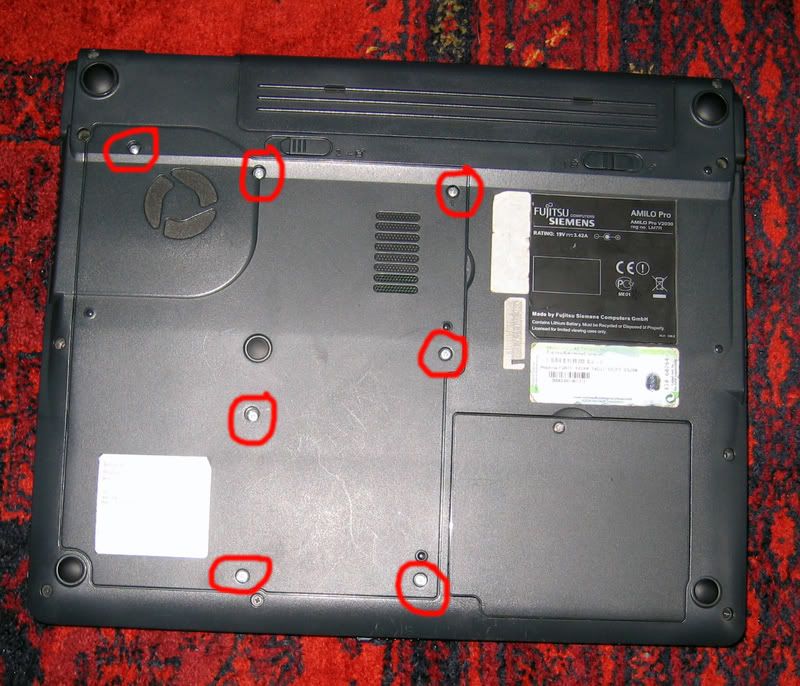
Now you have your equipment gathered you need to get into the laptop to begin work, turn the laptop upside down and remove the screws with the precision screwdriver. It always helps if you place the screws in a cup or somethig else which will prevent them from rolling away or getting stuck to your socks or kicked about the room or whatever else might happen to them. Once you have removed the screws pop the cover off by carefully using the flathead screwdiver, if you're a bit worried using the screwdriver to prise the cover off a hard guitar plectrum works great.
- v2030
Removing The Fan...
by v2030 » Mon May 05, 2008 10:02 am
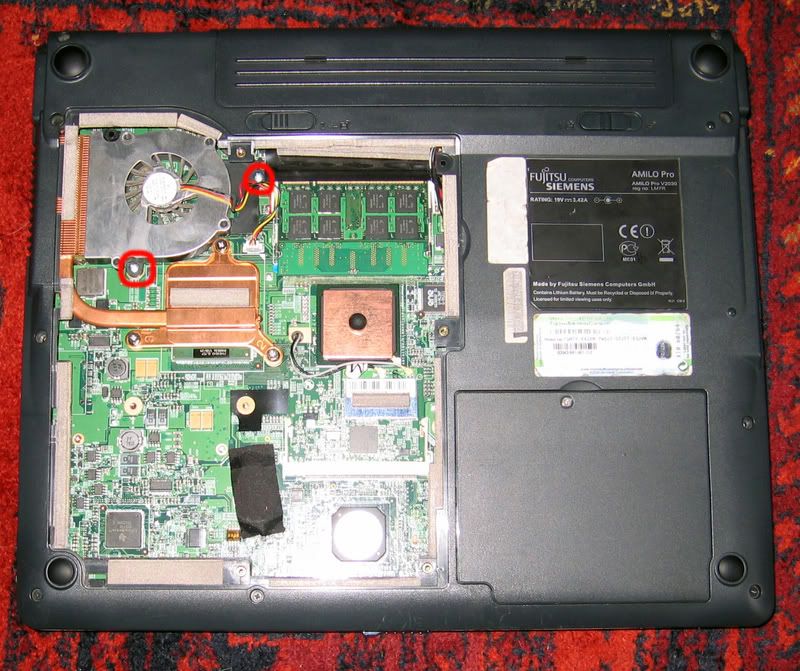
Once the cover is removed you need to begin dismantling the cooling system in order to get to the processor, removing the fan is pretty simple as it's only fastened on with two small screws. Remove these two screws using the precision screwdriver being carefull not to drop them into the computer as you don't want to dismantle the whole machine looking for the lost screws.
Once the screws have been removed the fan will just lift out of place, if it seems a little stiff just give it a little jiggle and it will come out easily enough. Be very gentle with this though as the fan (and the rest of the laptop) is very delicate and very expensive to replace.
Once the screws have been removed the fan will just lift out of place, if it seems a little stiff just give it a little jiggle and it will come out easily enough. Be very gentle with this though as the fan (and the rest of the laptop) is very delicate and very expensive to replace.
Last edited by v2030 on Mon May 05, 2008 11:41 am, edited 1 time in total.
- v2030
Removing The Heatsink...
by v2030 » Mon May 05, 2008 10:21 am
Now we have the fan out of the way we just need to remove the heatsink and we have access to the cpu, removing the heatsink is really easy and not only allows you access to your processor but also gives you a chance to give the vent on the heatsink a good dust down as it's more than likely full of dust causing your laptop to be hotter and noisier than it needs to be.
To remove the heatsink you just need to unscrew the three large screws with the precision screwdriver, the screws will remain fastened into the heatsink when loosened but the heatsink will rise away from the board. When the screws have been loosened it's time to remove the heatisnk, to do this just wiggle it to the bottom right of the laptop as you lift it gently and it will come free from the case.
To remove the heatsink you just need to unscrew the three large screws with the precision screwdriver, the screws will remain fastened into the heatsink when loosened but the heatsink will rise away from the board. When the screws have been loosened it's time to remove the heatisnk, to do this just wiggle it to the bottom right of the laptop as you lift it gently and it will come free from the case.

Last edited by v2030 on Mon May 05, 2008 10:36 am, edited 2 times in total.
- v2030
Removing The CPU...
by v2030 » Mon May 05, 2008 10:34 am
We now have access to the processor which is really easy to remove and replace, to remove the processor you need to use the small flatheaded screwdriver to turn the little locking mechanism 180degrees anticlockwise. This 180 turn will unlock the processor meaning you can very gently lift it out of it socket being very careful not to bend any of the pins on the processor, it's very important to look after this Celeron M you are about to replace incase the Pentium M you are about to install fails one day - you will then have a backup.

- v2030
Processor Removed...
by v2030 » Mon May 05, 2008 10:40 am
Now the processor is removed we have reached the halfway point.
You should now be looking at something like this...
You should now be looking at something like this...

- v2030
Installing the Pentium M...
by v2030 » Mon May 05, 2008 10:58 am
Now it's time to start putting it all back together you need to get your Pentium M and your thermal paste ready for action. Being carefull to get the processor facing the right direction according to the pins on the chip and the holes on the socket drop the processor into the socket, this should go in with no trouble at all if the processor is the right way 'round and none of the pins are bent. Once the processor is snugly in the socket it's time to lock it back in place by once again turning the locking mechanism 180 degrees but this time in a clockwise direction, now the processor is locked in the socket it's time for the thermal paste.
You only need to use a tiny bit of paste on these Pentium M processors as there is very little surface area makes contact with the heatsink, just place a small blob (just a few mm) in the centre of the metal part of the CPU. There's no need to spread the paste around if you get it in the middle as the pressure from tightening the heatsink will spread the paste for you. Ideally you will now clean the thermal pad off the heatsink using a new clean lint free cloth and some isopropyl (rubbing alcohol), I didn't do this as I had no rubbing alcohol to hand but I would suggest that anybody following this guide would do so.
Annotation: Here you can find instructions to apply a thermal paste:
http://www.arcticsilver.com/arctic_silver_instructions.htm
These instructions can also be used for other processors and other brands of thermal paste.
Once the paste is on the processor it's time for the next step.
You only need to use a tiny bit of paste on these Pentium M processors as there is very little surface area makes contact with the heatsink, just place a small blob (just a few mm) in the centre of the metal part of the CPU. There's no need to spread the paste around if you get it in the middle as the pressure from tightening the heatsink will spread the paste for you. Ideally you will now clean the thermal pad off the heatsink using a new clean lint free cloth and some isopropyl (rubbing alcohol), I didn't do this as I had no rubbing alcohol to hand but I would suggest that anybody following this guide would do so.
Annotation: Here you can find instructions to apply a thermal paste:
http://www.arcticsilver.com/arctic_silver_instructions.htm
These instructions can also be used for other processors and other brands of thermal paste.
Once the paste is on the processor it's time for the next step.
Last edited by hikaru on Sun Dec 21, 2008 9:50 pm, edited 2 times in total.
Reason: added annotation on thermal paste
Reason: added annotation on thermal paste
- v2030
Replacing The Heatsink...
by v2030 » Mon May 05, 2008 11:03 am
Now the heatsink goes back in as easy as it came out, but just be carefull not to rub the paste off the processor as you wiggle the heatsink back into place. Try and hold the heatsink above the processor as you replace it to prevent the paste from being spread all over the bottom of the heatsink. Once you have the heatsink back in place tighten the three screws nice and tight to fasten the heatsink to the board, don't go overboard with the tightening though as I'm sure it's quite easy to damage the board or processor by doing so.
- v2030
Replacing The Fan...
by v2030 » Mon May 05, 2008 11:09 am
Place the fan back in the area it was removed from and line up the screw holes with the pilot holes in the board, now screw the two little screws back into place nice and tightly.
- v2030
Replacing The Cover...
by v2030 » Mon May 05, 2008 11:13 am
Now we're almost finished with the hardware side of things.
Replace the cover back over the exposed part of the board and carefully snap it back into place before replacing all the screws that hold the cover in place, screw these in nice and tightly to keep the dust out and vibration noise down.
Replace the cover back over the exposed part of the board and carefully snap it back into place before replacing all the screws that hold the cover in place, screw these in nice and tightly to keep the dust out and vibration noise down.
- v2030
Fire it up...
by v2030 » Mon May 05, 2008 11:27 am
Once the processor has been replaced and the system put back together it's time to turn the laptop on and see the results.
My laptop has Windows XP installed so I will show you here how to check the processor has been recognised as a 1.7GHz Pentium M, for Linux I'm afraid I can't help here but if you're running Linux you're probably clued up enough to do this part yourself.
When your laptop has booted up right click on the My Computer icon and select Properties and this screen should be displayed, as you can see the new processor has been recognised.
My laptop has Windows XP installed so I will show you here how to check the processor has been recognised as a 1.7GHz Pentium M, for Linux I'm afraid I can't help here but if you're running Linux you're probably clued up enough to do this part yourself.
When your laptop has booted up right click on the My Computer icon and select Properties and this screen should be displayed, as you can see the new processor has been recognised.

- v2030
Keeping An Eye On Temperature...
by v2030 » Mon May 05, 2008 11:37 am
As the cooling system in the Amilo Pro is designed to keep the temps from a 1500MHz Celeron M under control it's a good idea to keep an eye on the CPU temp of this newly installed Pentium M. There are several programs which will allow you to do this, I use a program called Notebook Hardware Control which I found through this site. You can download Notebook Hardware Control here, it's a great tool and real easy to use. So far my temps have not gone past 52degrees C, even with many hours of use which I am happy with.
- v2030
Re: Fire it up...
by Intenszz » Sat Sep 20, 2008 9:32 am
v2030 wrote:Once the processor has been replaced and the system put back together it's time to turn the laptop on and see the results.
My laptop has Windows XP installed so I will show you here how to check the processor has been recognised as a 1.7GHz Pentium M, for Linux I'm afraid I can't help here but if you're running Linux you're probably clued up enough to do this part yourself.
When your laptop has booted up right click on the My Computer icon and select Properties and this screen should be displayed, as you can see the new processor has been recognised.
Hi there!
I bought exactly the same processor are you mentioned : SL7EP
I installed it and my V2030 boots up normally, but in the Windows screen is says 598mhz???????
I updated the bios version to 1.0i and reseted the bios... its still 598mhz..
I run a super_pi test on 512k and it run 20 loops in 49 seconds!
I reinstalled my celeron again and did the same test in 20 seconds!
The program CPUINFO also says that the 1.7ghz runs on 598mhz..
One more thing, if i check at your screenshot I can see 3 numbers and then mhz..
how much does your v2030 says??
I dont think this upgrade is a good one..
- Intenszz
- Posts: 3
- Joined: Sat Sep 20, 2008 9:25 am
Re: V2030 Processor Upgrade Tutorial
by philskermer » Sat Sep 20, 2008 4:45 pm
Hi folks,
I'm newly regisered but found your upgrade tutorial via a search engine. I too have jut purchased the same chip and funny old thing, my system is also slower than before. I am currently running with 2G RAM and Sandra pro lite returned CPU arithmatic test results as 1.7GIPS and 1.42GFLOPS as opposed to 4.31GIPS and 3.56GFLOPS for the original celeron. I have yet to run any speed checks to confirm actual CPU MHz but I am not too hopeful. I also made sure that the system is running as a desktop as opposed to a portable/laptop as this should ensure thr 'Speedstep' sets the CPU to max. Any other clues as to why this is slower or is it just a poor and incompatale upgrade?
I'm newly regisered but found your upgrade tutorial via a search engine. I too have jut purchased the same chip and funny old thing, my system is also slower than before. I am currently running with 2G RAM and Sandra pro lite returned CPU arithmatic test results as 1.7GIPS and 1.42GFLOPS as opposed to 4.31GIPS and 3.56GFLOPS for the original celeron. I have yet to run any speed checks to confirm actual CPU MHz but I am not too hopeful. I also made sure that the system is running as a desktop as opposed to a portable/laptop as this should ensure thr 'Speedstep' sets the CPU to max. Any other clues as to why this is slower or is it just a poor and incompatale upgrade?
- philskermer
- Posts: 1
- Joined: Sat Sep 20, 2008 4:34 pm